Connect tinyCFO to Poke
Add tinyCFO as an MCP integration in Poke so it can analyze your spending, track your net worth, and answer questions about your finances using your real data.
Connect tinyCFO to Poke and start asking questions about your real financial data. Setup takes about a minute.
Before You Start
- A tinyCFO account with at least one bank account connected. No account yet? Start with the Getting Started guide.
- A Poke account at poke.com.
Step 1: Open Integrations
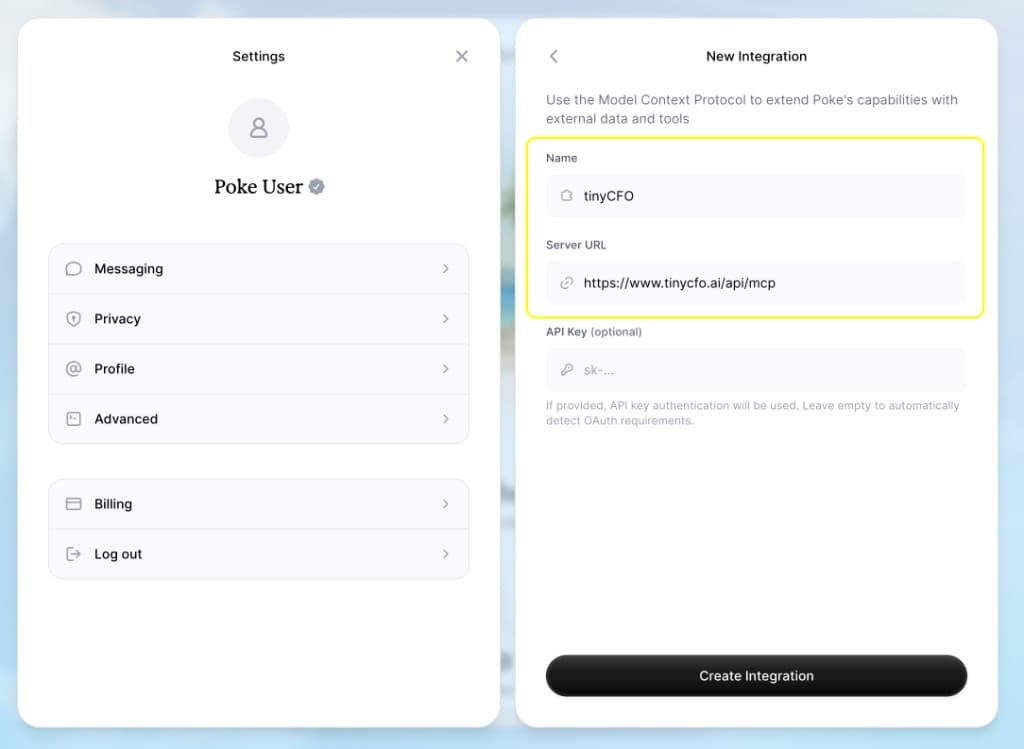
Go to poke.com/settings/connections/integrations/new to add a new MCP integration.
Step 2: Name and Server URL
Copy Name and MCP Server URL below into Poke. Leave API Key empty so Poke can use OAuth (Poke's helper text says leaving it empty lets them detect OAuth automatically).
Click Create Integration, then sign in to tinyCFO when Poke prompts you so the connection is authorized.
Step 3: Open Text Poke from the home screen
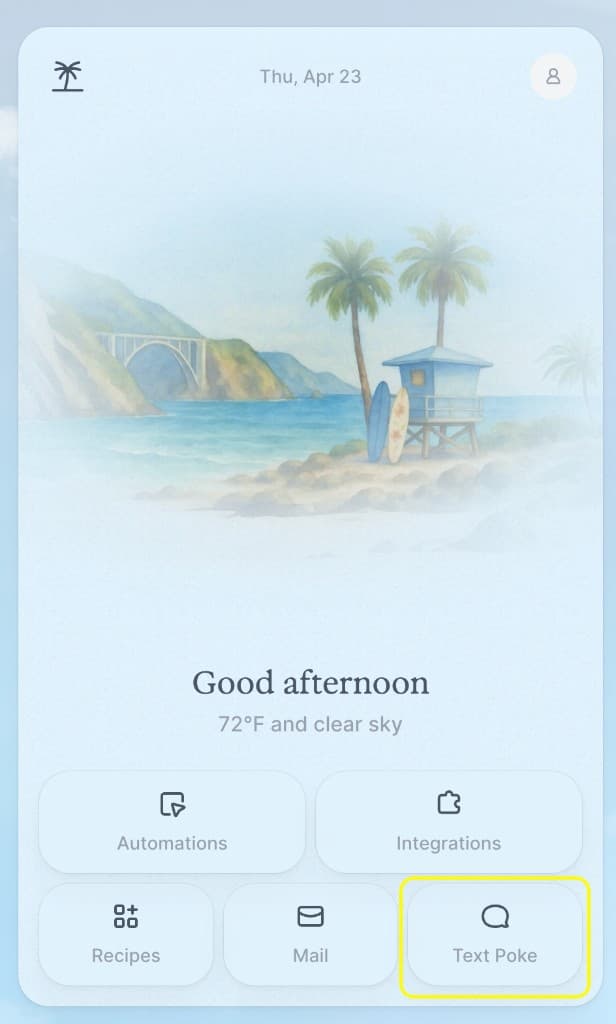
Go back to the main Poke app at poke.com. On the home screen, use the bottom-right tile (Text Poke, with a speech bubble; some versions show Message instead). That opens a chat where Poke can use your integrations.
Try something like:
- Hi tinyCFO, what's my net worth?
Try It Out
Once you are in a Poke chat with tinyCFO connected, you can also try asking:
- "What did I spend on restaurants last month?"
- "What is my current net worth?"
- "Show me all recurring charges over $50"
- "Am I cash flow positive this month?"
Troubleshooting
"Unauthorized" error: Open tinyCFO in the same browser, sign in, then try connecting again in Poke. If an old API key is saved in Poke, clear the API Key field and save so OAuth can run.
Re-authorizing after an old API key setup: In Poke, open Settings for your existing tinyCFO MCP integration (edit, not only create new). Delete any text in the API Key field, save, then use Connect / sign in again and complete OAuth in the browser. A stale key blocks OAuth even if the field looks empty. Select all, delete, save.
If Poke still requires an API key: In tinyCFO go to Settings → API Keys. Create a new API key, copy it immediately (you will not see it again), paste it into Poke’s API Key field for tinyCFO, save, then finish Connect or re-authorization. Prefer OAuth when Poke allows an empty key; only use this path if their UI insists on a key or support asks for it.
No data showing up: Verify you have at least one bank account connected in tinyCFO. New accounts can take a few minutes to sync.
For more details, see the official Poke MCP guide.
Questions? Reach out at support@tinycfo.ai or book a demo.